Showing posts with label android. Show all posts

Monday, July 24, 2017

Security Updates


Security updates can be annoying and frustrating.  We often get update requests at inconvenient times and don't want to take the time to install them.  That said, more and more, having the most recent security update installed is becoming more and more critical, to the point that it is part of our ethical obligation to protect client data.

Years ago, many updates were less important, making minor bug fixes or adding things that did not affect most of us.  Today, hackers are looking to exploit recently discovered security bugs so that they can attack the computers of people who are too slow to install security patches.  As a result, a device that is not completely up to date becomes a prime target for hackers in a way that was not true even a few years ago.

iPad / iPhone Updates

Last week, Apple release iOS 10.3.3 which patches a security hole that could allow a hacker access to your iPad or iPhone via a bug in the WiFi feature.  To make sure your iPad or iPhone is up to date, just go into settings, then General, then Software Update.  There, you should see that you are either up to date, or have an update pending.

Android Updates

If you have an Android device, you can go to Settings then System Updates.  Our firm phones, using Samsung Galaxy, should be up to date automatically. If you have been ignoring pop-ups telling you to update, you should go ahead and update.

Because Android is on a wide variety of hardware, you may have a personal device that forces you to update manually, or may not even make available the most recent security updates at all.  This is one reason the firm has decided to standardize on iOS devices, despite many other advantages that Android has over iOS.

As we tighten our security requirements, you may want to consider checking with the IT department before buying a new device, especially some of the cheaper Android devices out there.  The firm may soon cut off access to some older or cheaper devices that do not meet security standards for protecting client data confidentiality.

Windows

The firm has standardized on Windows 7 and Windows 10.  We have retired all of the Windows XP and earlier computers that had been in use.  As we make the move to the cloud, some of our vendors require us to have all computers at Windows 7 or higher.  All new computers will come with Windows 10, since Windows 7 is reaching end of life in a few more years.

Whichever version you have, you should get pop-ups from time to time asking you to install updates. Windows 10 is a little more persistent and annoying about such requests.  But in either case, you should install any critical or important updates which Microsoft has released.  Some of these happen automatically.  Some simply remind you to update yourself.  Many years ago, we did not always recommend installing the latest updates out of a fear that Microsoft sometimes introduced bugs with its updates.  Today that is not the case.  The risk of security holes far outweighs any risk of a buggy update.

On the right hand side of the toolbar, you should seen an icon for security updates.  If you hover your cursor over it, you can see if you have anything pending.  Clicking on it will allow you to update. Critical updates are usually pushed out and installed without asking.  If you have ever gone to shut down your computer and Windows says it is installing updates, you know what I mean.

MacOS

A few of our users have begun trying MacOS devices within the firm.  Like anything else, these also need regular updates.

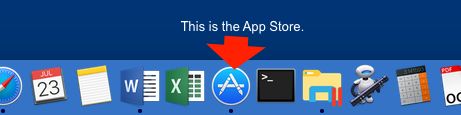
To make sure your Mac is up to date, open the App Store and click on “Updates” (at the top right of the menu icons).   You should see a list of any available updates not yet installed.  You can click on the option to update any one of them, or simply "update all" to install everything.


Monday, July 18, 2016

Protecting Information on Your Smart Phone

Every year, we seem to become more dependent on our smart phones for work.  More importantly, more confidential client data, in the form of emails, documents, access to cloud storage, and other means of access are left on our phones.  As a result, securing that data is increasingly important.  I have addressed this issue in my blog once before but thought it worth addressing the issue once again.

The first thing you can do, if you have not already, is to secure your phone with a password.  This is the easiest and most obvious form of protection.  All modern iPhones and most Androids, including the Samsung Galaxy line, also have fingerprint scans for opening your phone.  I recommend setting up both.  With the fingerprint, you can access your phone almost as easily as a screen swipe.  The password provides a backup entry if the fingerprint does not work for some reason.

Beyond the hassle of accessing your phone, I can think of two reasons people avoid it.  One is that if a phone is lost, an honest person who finds it cannot return it.  In my earlier post, I explained how you could set up identifying information on your start screen, which a user can see without opening the phone. Another concern is forgetting one's password and getting locked out.  The IT Department already stores many of your work passwords.  We are also happy to store this password as well.  But to be clear, if you set or change a phone's password and do not tell us what it is, and then forget the password yourself, we have no way of accessing the phone.  You cannot even reset it.  You might as well throw it away and buy a new one at that point.

Beyond a password, make sure your device is encrypted.  Without encryption a professional may be able to access your phone's data drive even without a password.  By default, iPhones are encrypted as soon as you add a password.  Android users must go through another step in settings to encrypt data.

Typically, our phones are not stolen.  More commonly, we lose them.  One of the best things to do is ensure there is a way to locate your phone if you lose it.  By default, Android devices are set up so that you can use a locator online, as long as you have a valid Gmail account configured on the device.  Your work email will suffice for this purpose..  Here is a good article on locating and wiping your lost device.  The firm uses device management.  If your phone has been set up properly, we will have the ability to wipe email off your phone, or wipe the device entirely.

If you use an iPhone, you must set up an iCloud account prior to losing the phone.  Without this, we cannot locate the device for you.  We can, however, wipe the phone's contents even with out an iCloud account. With the account, you have the ability to search for your device and locate it on a map.  It greatly increases your chances of recovering your lost device.  If you do not already have an iCloud account set up for your iPhone, I strongly recommend that you do so.  I also recommend providing the iCloud password to the IT Department for safe keeping.  Otherwise, if you forget it, having the account will be useless to you.

An iCloud account also does more than simply locate your phone.  It serves as a backup device so that your pictures, files, and settings can be stored in the cloud.  If a phone is list, stolen, or damaged, your iCloud can be used to restore those files and settings on a new device.  It also comes in handy when upgrading your phone.  An iCloud account is free for up to 5 GB.  If you decide you need more space, you are on your own to pay for it.  Typically, iCloud accounts get filled by pictures.  You can download the pictures and store them elsewhere to save space (I recommend using Google Photos, which works with both iPhones and Androids, and offers free unlimited cloud storage of your photos).

Wednesday, January 6, 2016

Scan Documents With Your Cell Phone

There are times when you are out of the office.  You come across a document and need a copy of it. You can use your smartphone as a document scanner.

There are numerous apps that allow you to capture a document through a phone's camera.  One of the most useful for me is the Google Drive App.  If you don't already have this app, it is a free download from Google's Play Store or Apple's App Store.

Open the Google Drive App on your phone.  Click on the red circle with a plus sign to add a new document.  Select the camera and take a picture of the document.  You have the option to add additional pages or complete the document.  Once complete, the document saves as a PDF file to your Google Drive.

When you get back to the office, simply download the PDF to your computer. You can use PDF Xchange Editor to OCR the document if you need that, or simply use as is.

The scan directly to PDF only seems to work on the Android version of the App.  The iPhone Drive App scans to JPG format.  Still, once the document is saved to your Drive, you can use the Drive's "download as PDF" option to convert it to PDF when you download it to your computer.

This can be a convenient way to snap receipts to be uploaded into Chrome River for reimbursement.  It is also a convenient way to store a paper document that you need for further review later.


Wednesday, December 23, 2015

Google Photos

We all use our phones as cameras, but many of us find it difficult to transfer pictures from the phone to a computer or some other device.  We end up letting the pictures fill up on our phone and then have to figure out what to do when it is time for a new phone.  Worse, we break our phone and lose all those pictures forever.

There are numerous ways, of course, to get photos off of the phone. One of the most convenient is Google Photos.  This can be installed as an App on your Android or iPhone.  You can configure the app, so that all photos are immediately uploaded to Google's cloud storage.

There are several things I find particularly attractive about Google Photos.  First, there is no storage limit.  You may upload and store as many photos as you like without ever having to pay extra storage fees.  There is no need to worry about limits.  Second, once it is configured, it works without you having to do anything.  Just take a picture and you are done.  It will upload automatically.  Third, access to the photos is easy.  Just go to http://photos.google.com and see all of your photos (assuming you are already logged into your Google account).

You can leave the photos on the site, share them with others, or download them for use elsewhere.  No need to worry about transferring between devices or losing them when a computer dies.  If you have photos stored on your PC, you can also upload them manually to the Photos site for permanent free cloud storage.

Photo size is limited to 16 megapixels for the unlimited storage.  This is not a problem for pictures taken with your Galaxy or iPhone as neither phone can take pictures above that level.  It may be an issue if you are uploading high quality pictures from another device.  If you want the unlimited storage, Google will automatically reduce the photos to the required levels for storage.

Video can also be uploaded and stored.  Again, there is a limit that the video of 1080p HD.  But again, that will suffice for most people.  Your phones are not capable of higher video quality.

If you delete a photo from the web site, it will also delete from any synced devices, such as your phone.  So do not delete from there if you want to keep the photo.  You may, however, delete a photo from your phone and keep it stored in the cloud.

Also, if you plan to store pictures there forever, remember that if you leave the firm and we shut down your Google account, those photos will go with them.  If you are taking personal photos, you may want to sync them to a personal Gmail account that you control.


Tuesday, June 16, 2015

Personal Do Not Call List

There are some people who have, let's say boundary issues.  You just don't have the time nor inclination to speak with them, yet they continue to call and badger you.

You can block callers on both your Android and iPhone.

With Android,
  1. Open your Phone, then click on settings (the three dots in the upper right hand corner).
  2. Select "call" then "call rejection".
  3. Open the auto reject list.
  4. Press the + to add a number
  5. Add the number you want to block and press "done" then "save".
  6. Repeat steps 4 and 5 to add additional numbers.
If someone on the block list calls you, the caller will go straight to voicemail.

Text messaging is tougher. If you touch a message and leave your finger on it for a couple of seconds, you will get an options menu.  One option is to "report as spam".  If you report the number as spam, the texts will be deleted, and future texts from the number will be blocked.  If you use a messaging app other than the one provided by Verizon, you may have other options.  There does not seem to be a way to keep the messages but block future ones.  

There are some other third party messaging apps that may do this for you.  Feel free to check out the Google Play store for a number of free apps that block messages.  I looked at a few that had mixed reviews.  Unfortunately, I have not had time to test any in order to make recommendations.  If anyone else has, feel free to let me know what you recommend.  I will give it a test and pass along the results in a future posting.

Blocking With iPhone:
  1. You must have the number in your Contacts before you can block it.  If you don't want to create a contact for everyone with whom you want no contact, you might want to consider just created a "no contact" entry in your address book and add all the numbers to that.
  2. Click on Settings, Phone, Blocked, Add New
  3. Select the contact you with to block and exit.
Blocked list members cannot message, or Facetime you.  Calls go straight to voicemail.

I noticed a bug in the iPhone blocker.  If I added a contact to the block list, then changed the number in that contact, the block would not work until I removed the contact from the list and then added it again.

Verizon Phones

Verizon also offers the ability to block up to five numbers.   However, a Verizon block only remains in place for 90 days.  You can use this method either by calling Verizon support, stopping by a Verizon store, or ask me to set it up for you through the Verizon web site.
  
The big difference of a Verizon block is that it prevents the caller from even being able to leave a voicemail message.  They receive a recording that their number has been blocked.  Text messages are also blocked, but the sender gets no message back.

Emails

For emails, you can click on the Report Spam button in Gmail.  This usually puts future emails from this address straight into your spam folder.  

This does not always block 100%, especially if you have corresponded with the user in the past, or if they are in your contacts.  Also, there may be times when you want to keep a record of the emails but do not want to see them as they come in.

In such cases, you can create a filter,   Whenever an email comes from a particular address, Gmail can move it to a folder and remove it from your inbox automatically. You can also automatically mark it as read so that it doesn't show up as an unread email.  The Help Desk can assist you with setting up such a filter if you need the help.


Wednesday, April 22, 2015

VPN from Phone or Tablet


I have been asked by several people whether it is possible to make a VPN connection to our network from an iPhone or Android device.  My short answer is that while it is technically possible, it is difficult and you will likely still have problems accessing your files.  Therefore don't bother.  But for those who want a longer answer, today's post is for you.

VPN is Possible

I was able to make VPN connections through both an Android and iPhone and connect with our system.  I am not going to post the details on our public blog since doing so would give hackers most of the information they need to access our system.  But I'm happy to explain the details to anyone in the firm who is interested.

Making a VPN Connection Accomplishes Little

Before we go into VPN details, my first question would be why you wanted to do this?  Making a VPN connection to our network does not get you access to much of anything.  You might be able to get access to our network, but you would still need a program to access the servers and yet another program to access your files.  And that is assuming you have an app that can open files at all.  Most documents are in WordPerfect format.  Unless you have purchased a WordPerfect reader for your phone, you will not be able to read these files.  There is no known app to edit them. Directly accessing files via VPN is a difficult cumbersome process, which I do not recommend using.

File Explorer App is Needed on Your Device

Say, despite my warning, you still want to do this.  The next thing you will need is a file explorer App that can access LAN devices.  On my Android, I downloaded a free one called ES File Explorer.  Using that, I can access a file server by it's IP address, then log in using my LAN name and password, and access the files on it.  Once in there, I can open PDF files or MS Office documents using the free WPS Office App.  I don't have the WordPerfect reader app, so I'm out of luck there.

There are similar file explorer apps for the iPhone, I used a free one called Documents (by Readdle) that allowed me to connect.  As with the Android App, I needed to know the IP address of my file server, then had to log in using my network login name and password.  Once connected, I could access my files, but still needed to have a program that could read them.

VPN Access For Things Other Than Files

VPN would also allow me to access the Research Home Page via my browser.  However, time permitting, I hope to move the Research Home Page to a public location on Google Sites, where you will have access to it without VPN.  You will only need to be logged into your Google Account.

I would not be able to enter time in Webview since Webview restricts access to Internet Explorer, which is not available for iPhone or Android devices.  Of course if you want to enter time on your device, you can use iTimeKeep, which is available over the Internet without VPN.

There is no need to use VPN for email since that is available over normal internet by going to gmail.com (or preferably using a Gmail or other Email App on your device).

If you want to access files outside the office, I recommend placing those documents in Google Drive, again no VPN required, so you can access using the free Google Drive App on your smart phone or tablet.  I discussed use of Google drive in this earlier blog if  you care to read it again.

Remote Desktop: 

In an ideal world, we would have a Citrix server that would allow you to connect into our system into a virtual desktop that would show up on any device, giving you full access to all documents and programs that you have when in the office.  But such a system is very expensive and is cost prohibitive under current budget restraints.  As a result, making use of VPN from your mobile device is technically possible, but not really worth the trouble.

If you leave your computer turned on in the office and you make a VPN connection to the firm's network, could could make a remote desktop connection to your computer.  Microsoft makes a Remote Desktop Client for both the Android and iPhone/iPad that will allow such a connection.  To make this work, you will need to know the IP address of your computer at work, as well as the login name and password.  This is usually the same as your network login.  You may also need to authorize Remote Access in Control Panel /.System / Remote Access on your computer.

Even if you get Remote Desktop to work, you may find it very frustrating to use.  I found that dragging around the mouse cursor with my touch screen to be very tedious, and typing anything on my phone to be much more difficult than using a computer directly.

Other Reasons for VPN

VPN offers a level of security by encrypting all data packets that pass between your device and the VPN server. If you are on a public WiFi network you can make a VPN connection to provide an extra level of security for normal internet use.  If you are in another country, certain features on some internet services may not be available.  For example, I had a problem using some parts of Skype while in Europe.  A VPN connection back to the office will fool any Internet service into thinking you are accessing it from a US location.

Thursday, April 9, 2015

Editing Documents on a Phone or Tablet


More and more I hear from people who don't want to deal with carrying around their laptops with them.  Phones and tablets are much more nimble.  But we are also a document driven world. Working with documents on mobile devices can take some setup.

WordPerfect

First I have to say this is one big area where WordPerfect is a near total failure.  There is no good way to edit WP documents on a phone or tablet.  Corel has a WP Reader app that will let you read but not edit WP documents on your device, at a cost of $5.99.  Further, because so few people use WordPerfect anymore, no third party app I have found is compatible with WP documents.  To get around this problem, you can save a document in Wordperfect as another format.  I prefer RTF (rich text format) since it is a widely accepted default format that works across many different browsers and maintains almost all formatting).  Saving as RTF will make it easier to access from other programs.  You could also save as an MS DOC file or as PDF.

Most formats other than WordPerfect allow many options.  Various Microsoft documents, PDF, and a wide range of open source documents are supported by a great many apps.

WPS Office

My favorite is WPS Office (formerly known as Kingsoft Office).  This is a free app available both on Apple's App Store as well as Google Play. It does a very good job reading and editing all Microsoft documents as well as a host of others (including RTF).  It can also serve as your default PDF reader.  You can also connect to your Google Drive, Dropbox, or several other cloud based storage services. I make it my default document reader on all of my devices and heartily recommend it.

MS Office 

Microsoft also recently made an Android and IOS version of MS Office available as a free download.  Early versions only allows you read, but not edit documents.  The most recent free version does allow editing.  Still, the product is considered "freemium" meaning you can use the basic functions for free, but many advanced features require a subscription to Office 365.  For example, you cannot use the compare documents feature in the free version (although you can do this in the free WPS Office).

I am not a big fan of freemium products since it is typically the company's ultimate goal to get you hooked but then frustrate your experience until you fork over your money.  But if you prefer to use the basic version of MS Office rather than WPS Office, it is an option.  If you want to read more about the benefits and limitations, you might this article from PC World worthwhile.

Google Drive

The program I most commonly use on my mobile devices is the Google Drive App.  Again, this is a free download from the App Store and Google Play.  It gives me access to all of my documents stored in Google Drive and allows me to edit them.  I mostly work with documents in the native Google format, but you can also work with documents that you have uploaded in various Microsoft or some other formats as well.  My preference, however is to use WPS Office when working on non-Google files.  But since I keep almost all my key documents on Drive and in Google's native format, I get full functionality on the Google Drive App.

A major benefit of the Drive App, is that you can save a Google Drive document for offline use.  I like this on my tablet, which is not always connected to the Internet.  I can work on my Google Drive documents offline, then have it sync automatically back to my Drive when I am back online again.

Other Apps

There are several other pretty good free Apps, including Office Suite, Docs To Go, and Polaris Office.  Any of these will work well for most functions, but without going into lengthy explanations, I will just say that WPS Office remains my favorite of the bunch.

Options for Editing

Once you have decided on the App you like, you should also consider how you will edit these documents.  Typing a quick message on your screen is fine for a sentence or two, but not for a multi-page document.

You might want to consider investing in a Bluetooth keyboard for typing.  There are many different ones out there.  You will need to decide mostly if you want a full size device for maximum comfort, or want something smaller and lighter for easier mobility.

For me, the best option is dictation.  As with virtually all Android or IOS Apps, you can dictate directly into your device using the microphone that shows up on the pop-up keyboard on your device.  I find that the dictation is very accurate.  The big negative is that there are almost no voice commands for editing.  You will still need to do that with your thumbs.


Monday, April 6, 2015

Carry Your Wifi With You

I have been hesitant to write this post because of my concern about abuse.  But this is a feature that can come in handy in a pinch.

WiFi hot spots available on all firm phones

All of the partner cell phones with Verizon now offer the ability to create a WiFi hot spot using your phone's 4g connection.  If you are somewhere that does not have internet, you can create a hot spot on your phone, then connect your laptop or other device to that hot spot and access the Internet.  If you have a personal phone, check your contract to see if a hot spot is available.  Some subscriptions charge extra for this service.  So even if your Android or iPhone has the capability, you still need to have a service provider which allows this option.

Use hot spots sparingly

Before I explain how to do this, I must issue a warning.  The firm pays for a limited amount of shared data each month.  If we go over that limit, we have to pay overage charges.  We usually stay safely within our limits with current usage, but it will be very easy to blow through that limit if people begin using their phone as a WiFi hot spot on a regular basis.  If your data usage begins to spike, we will notice and ask for an explanation.  Don't use this feature except on an occasion when needed for work.  Don't use it for high bandwidth activities such as streaming video or music.

There are other reasons not to use your phone as a hot spot.  It will drain your battery rather quickly. Also, a 4G connection is much slower than most traditional WiFi.  Don't expect to see the same sorts of speeds you see on your home WiFi or at Starbucks.

Set up Android hot spot

OK, with those warnings aside, here's how it works: on your Android, go into SETTINGS, then MORE NETWORKS, then add your hot spot:

Your Network SSID can be anything.  That is the name you will see when you try to connect to your phone.  My SSID is my initials, but you can make it whatever you want.

You have the option to "hide my device".  This will prevent your SSID from being broadcast.  If you are in a public area, this is a good idea as you don't want strangers seeing your hot spot and trying to access it.  If you do hide it however, you will need to remember your SSID and enter it manually when trying to connect to it.

Next, select Security.  I recommend using WPA2PSK.  This provides encryption so that others cannot see what your are transmitting over your network.  It also prevents others from accessing your network without a password.  Again, this is very important in a public place.  Your password can be whatever you want, but I use my cell phone number.

Set up iPhone hot spot

The iPhone has a few less choices.  First, go into SETTINGS, then PERSONAL HOTSPOT.  There, you can turn on the Personal Hotspot and set the WiFi password to whatever you want (you will need to enter this later on your device, so memorize it or write it down).  You have no security choices and your SSID is set to whatever your phone's name is.  Save your settings and you are ready to connect.

Connect your computer to the hot spot

That should be it.  Once turned on, you can look for the hot spot on your laptop and connect to it, just like you would any other WiFi location.  If you hid your SSID, you won't see it and will need to enter it manually.  If you like to prepare ahead of time, don't hide your SSID until  you have connected once.  Then hide it, but you will have that network saved on your laptop and can still connect with a simple click.

Remember to turn it off

When you are done, be sure to go back into your phone settings and turn off the hot spot.  Otherwise, it will continue to drain your battery at a rapid pace.  The hot spot turns itself off after 15 minutes of inactivity, but you don't want it running that long if you are on battery.

Alternative Connections

WiFi is the easiest way to connect, but you can also connect via Bluetooth (assuming your computer has Bluetooth) or via a USB cable (Android calls this "tethering").  These options are set up in the same place as your set up WiFi.  USB is obviously more secure, but requires using cables, making it more cumbersome.  However, it has the advantage of keeping your phone charged through the cord while you are using it.  But since WiFi is easiest, that is my recommended option.

Use as a last resort

Because these hot spots are slow, battery draining, and use up the firm's shared data, it should only be used if no other WiFi is available in the area.  Since you can do most of the same work directly on your phone, that is usually a better option even where Wifi is not available.  Still, there are times when this can be useful for one reason or another.


Monday, March 30, 2015

Forwarding attachments from your phone

Several people reported to me that they have had problems forwarding emails with attachments.  I ran some tests on both Android and iPhone.  Here is what I found:

If you are using an Android with the default email program that comes with the phone, as is the norm, and if you simply open an email that contains an attachment and then try to forward that email to someone else, the recipient will receive the email but not the attachment.  The reason for this problem is that the phone only sends what it has. By default, the phone does not download an attachment simply because you open an email.  Doing so would quickly clutter up the limited hard drive space you have on your phone as well as wastes bandwidth that costs extra when used excessively.

If you click on the attachment and download it to your phone and then try to forward it to someone, that forwarded message should include the attachment.   That was the case on several tests I tried on my Galaxy S5.  

With iPhone 6, when you forward an email, the phone should prompt you whether you want to include the attachment.  If you say yes, the phone downloads the attachment and then includes it in the forwarded email.  Some people reported that there are times when the iPhone does not ask whether you want to include the attachment.  In the tests I ran on an iPhone 6, however, it asked me every time, unless there was no attachment associated with the email.

Another option is to use the Gmail App rather than the default email app that comes with your phone. when using the Gmail App on either the iPhone or Android, there is no need to download the attachment at all. Forwarding an email that contains an attachment will automatically include that attachment for the sender regardless of whether it has been downloaded to your phone or not. This is obviously much more efficient if you do not intend to download the attachment for viewing on your phone otherwise.  By design, if you simply reply to the email, even Gmail will not include the attachment. 

If the Gmail app is not already on your phone it is a free download from Apple's App Store or the Google Play Store depending on your phone.  On Android, there should be no need to configure the app if you were already logged into your phone using your Gmail account. An iPhone will need to know your email address and password.  You can use the Gmail app or the default email app on your phone interchangeably. You can go back and forth and they will remain in sync.  So if you only want to use Gmail to forward emails, that is perfectly fine.


Tuesday, March 24, 2015

Time Entry

Lawyers live and die by the billable hour.  The firm is focused on making sure we capture all the time you spend working for clients.  If you are a timekeeper, this affects your annual review, your compensation, and the firm's overall profitability.  So it is critical not to lose time by forgetting to enter it.

Enter Time Right Away 

It is firm policy that you enter your time contemporaneously.  If possible, you should have a time entry screen open all day so that you can enter time immediately following each task.  Trying to reconstruct your work at the end of a day, week or even month is virtually impossible.  You will inevitably end up not being able to record much of your work.  Further, late entries may result in your time not going out on the right bill, or worse, the case may close and your time cannot be billed at all.

Entering time does not mean writing down notes on a piece of paper.  Time is not really entered until you have entered your time in the system and finalized that time.  Also, the firm requires that all timekeepers enter their own time.  Secretaries or other staff cannot enter time for you, even using your notes.  I strongly recommend entering time directly into the computer rather than writing it down and then having to enter it a second time into the computer.

Be Accurate and Complete

Our clients have exacting standards, regarding time entry.  Many of them insist on seeing the full details for each entry, and will read your descriptions.  Be sure you understand your client rules about specificity, maximum lengths of descriptions, and what tasks the client will or will not pay for.

Even if you cannot bill for time, be sure to enter it.  Clients like to see that you worked on something and then waived the charges for it, even if you are doing so out of an obligation to client rules.  Time spent on unbillable matters should also be entered as this is considered during your annual review.

Time and Billing System

The firm uses Elite Enterprise ver. 3.9 for its time and billing sytem.  Records are stored in a SQL database located in our main office in Philadelphia.  Our system runs across four separate Windows server: the Elite App Server, which runs all the Elite applications; Elite DB, which hosts the database, Elite Web, which runs Webview; and Elite WH which is used for reporting and processing of our bills..  All users, regardless of office, connect directly to the Webview server in Phila when entering time on Webview.

Webview

The primary way to enter time is through Webview.  This is the same basic time entry system that we have used since we started with Elite over 15 years ago.  You can access Webview from our network, either by clicking on the link from the Research Home Page, or going directly to http://10.0.0.213/webview.  Either method requires you to be inside the office or connected via VPN. Enter your name and password, and you can enter time on the calendar.  Originally, Webview ran on any internet browser.  However, Elite decided to limit access to Internet Explorer only, and at least version 6 of IE.  Some newer version of IE require that you operate in "compatibility mode".  If you have trouble getting past the screen where you enter your name and password, it usually means you are using the wrong browser.  

Once you have entered your time, you must finalize it.  It is fine to leave time unfinalized  until you are sure you no longer need to edit an entry, but the time cannot be billed to a client until it is finalized.  The IT Department finalizes time once a week on Mondays. but you should not wait for us to do it for you.

iTimeKeep

A big complaint about Webview is that you are limited to Internet Explorer and that you must be in the firm's network, either by being physically on site, or connected via VPN.  This is not always convenient if you are on the road or doing work at home.  For this reason, the firm has an alternate time entry system known as iTimeKeep.  This program allows you to enter time from any internet browser.  So if you prefer to enter time on Google Chrome or Mozilla Firefox, you can use this. Even Apple's Safari browser will work.  You also do not need to be in the system.  Any internet connection will work.  Just go to: http://desktop.itimekeep.com and enter  your email address and your password (usually this is the same as your Google password).

Once logged in, click on the + to enter a new time entry, fill out your entry and save.  You can then submit all of your saved time.  Once it is submitted through iTimeKeep, your time will show up in Webview as unfinalized time.  You must still finalize it in Webview.

Also, iTimeKeep is not limited to Windows or even PCs.  You can download the iTimeKeep app to your favorite iPhone, iPad, or Android device and enter time from there as well.  These Apps are free downloads in Apple's App Store or Google Play.  Just download, enter your email and password, and start entering time.  It's that easy!

I have been asked if iTimeKeep will eventually replace Webview completely.  The answer is no.  iTimekeep is a supplement to Webview, which actually does considerably more than allow time entry.  Webview will not be going away.

Timetrax

Some of you may still be using Timetrax for time entry.  This is an older time entry system that we provided years ago.  Elite has not supported Timetrax for many years.  They even claim it will not work on the version of Elite that we use.  Nevertheless, we did get it to work for some people, although we have had more and more problems getting it to install at all.   We are continuing to support it for people who are still using it, but are not installing it on new computers  If you have any serious problems with it, we cannot provide support.  You will need to start using either Webview or iTimeKeep.

Time Entry Tips

When entering time, many users find it convenient to use Shortkeys.  This program, which we install by default on all firm computers, allows you to create a shortcut.  You can use this to enter boilerplate phrases, sentences, or even paragraphs with just a few key strokes.  This is particularly helpful with repetitive time entries where you tend to say the same things over and over, with only a few minor adjustments.  If you need help configuring Shortkeys on your computer, just call the Help Desk.

Although Shortkeys is not available for iPhone or Android, many users find the dictation software on those devices to be useful.  Rather than typing in your descriptions, just click on the microphone and dictate.  It is pretty accurate and much faster.

Friday, January 30, 2015

International Roaming

International Roaming

Travel anywhere in the US and all of your calls and data are covered by Verizon's basic plan.  But if you cross an international border, you are subject the Verizon's rules of international roaming.

The firm wants you to remain in contact for work, but hopes we can avoid unnecessary charges.  Below are a few tips for taking your phone outside the country.

Plan Ahead

If you are leaving the country, and plan to take your phone, please send me an email with as much advance notice as possible.  I need to know your dates of departure and return, as well as what countries you will be visiting.

I can make sure that you are on an international plan. This reduces per minute call charges by about 30% (give or take depending on the country).  You also must have a data plan if you wish to use data at all (including sending tor receiving email).  Use of data without such a plan can cost over $20 per megabyte, meaning the firm could pay over $100 for a single email with a sizable attachment.  Data plans are sold at $25 per 100 MB.  If you go over 100 MB, you are charged for another 100 MB at the same price.

Verizon also recommends that you call them directly to get billing information about the countries you will be visiting.  You can call Verizon with any questions or problems while abroad at these numbers:

Within US: 800-711-8300
Outside US: 908-559-4899

Set Phone for Roaming

Even if you have your roaming plan in place on your account, your phone may still be blocking your access.  Make sure your phone is set to allow for international voice and data roaming.

On the Android, you can find these settings in SETTINGS, MORE NETWORKS, MOBILE NETWORKS.  Make sure Global Data Roaming Access is turned on.  Voice calls are always on, so if you do NOT want to receive expensive calls, turn your phone off completely or turn on Airplane mode.

On the iPhone, your settings are under SETTINGS, CELLULAR, ROAMING.  You can turn on or off voice roaming for calls and/or data roaming for other data features.

Watch Your Usage

Even if you are on an international roaming plan, making or receiving calls can cost over $2 per minute depending on the country you are visiting.  This charge includes calls made on nights and weekends, calls made to other mobile phones, and even calls to check your voice mail.  So be mindful of your calls and don't over use it if you don't need it.

There are special rules for Canada and Mexico travel that make calling cheaper.  So I'm less concerned about calls if visiting those countries.

Similarly, with data, connections, the average user uses perhaps 500 MB in a month, although some people use 8 or 9 GB in a month.  If you are a low end user, it would not be hard to go through 100 MB in a week while overseas, so be aware of that.

Also, text messages are charged separately while roaming.  The cost is usually 5 cents for each message received and 50 cents for each message sent.  So don't use messaging frequently thinking it will save money.

Money Saving Tips

Use WiFi whenever possible.  If you can connect your phone to a local WiFi network at the hotel, a home, or some other public place, you can upload and download all the data you like at no charge.  Text messages still incur a charge, as do voice calls.

Roaming charges apply to voice calls regardless of who originates the call.  There is no savings in having someone call you.

Make sure your email is sent not to download attachment except when connected to WiFi.  This is usually the setting we use by default, but it is especially important when roaming since those attachments can really impact your data usage.  You still have the ability to download an attachment by clicking on it once you have opened the email.

If you have problems while abroad

Your first call should be to Verizon's International Support line: 908-559-4899.

If you call me, the main things I'm going to tell you are, check your roaming settings as explained above.  Turn  your phone on and off.  Beyond that, Verizon is much better suited to helping you with any particular connectivity issues.

Wednesday, January 28, 2015

Getting the Most Out of Your Phone Battery

Getting the Most Out of Your Phone Battery

Aside from cracked screens, the main phone complaint we had in the last two years was over batteries.  Because the iPhones and Androids have so much more processing power and larger screens, than the Blackberries, they put much higher demands on your battery.

The newer phones do have better batteries, but like any rechargeable batteries, will hold shorter charges over time.  There are a few things you can do to improve battery life.

Maintain Battery Life

I have said in the past that it is a good idea to fully charge the phone and then let it run all the way to empty before recharging.  I am now retracting that advice.  That was good advice for old nickle based batteries.  However, with the newer lithium ion batteries, shallow discharges and frequent recharging is better.  Letting your battery run too low can actually cause problems.  So charge often, and don't worry about recharging to 100%.

Also, keep your phone in a cool location if possible.  Heat can damage the battery.  Do not leave your phone sitting above the heating vent or in your car during the summer.  It like cool (but not freezing) temperatures best.

Screen Brightness

One of the biggest drains on your battery is the screen.  Reducing screen can greatly improve battery life.  By default, your phone is set to "auto-brightness" which means it detects when you are in an area with more light and brightens the screen so you can read it.  It also darkens the screen a little when possible to save energy.

The problem with auto-brightness is that it tends to greatly over estimate how bright your screen really needs to be.  I have screen brightness on my Android set to about 10% above the lowest setting and usually have no trouble reading the screen in any environment.  You can find these settings under SETTINGS, DISPLAY, BRIGHTNESS.

On the iPhone the ideal is about 25% above the lowest setting.  You can find these settings SETTINGS, DISPLAY & BRIGHTNESS.  Feel free to play around with the settings to adjust as you see fit.

Turn off features not needed

Both types of phones have many features that you may not use regularly.  These can include Wifi, Bluetooth, NFC (near field communications), GPS, and screen rotation.  Since I use some of these, I typically leave them on. For example, I have Wifi on most of the time at home or work.  But if I'm in the car all day or will be out and about, I may turn off Wifi since I don't want the phone wasting power continually searching for hotspots.  I use bluetooth in my car, but turn it off while at home or work.  I tend to leave GPS on as it is convenient for Google Maps.  But if you don't use a map feature, you may want to turn it off.  I've never used NFC, and leave it off always.  Screen rotation tracks the position of your phone and adjusts the screen accordingly.  I leave this on, but if you don't care, or it bothers you, turning it off will save on battery drain.

On the Android, it is very easy to access these features to toggle on and off.  Just pull down from the top of the screen.  You will see a menu of these features.  Green means they are turned on. Gray means they are off.  Just press the feature to toggle it on or off.  There is also a button in the upper right hand corner of this menu that looks a little like the Windows Logo.  Press this to see a much larger range of options to turn on or off.

On the iPhone, these changes can be made in SETTINGS.  Most of them are right at the top of the main settings menu.

If you are in a location for a long time with a good Wifi spot, you could also turn off your 4G data connection to save power.  Just remember to turn it on again when you leave the area or you won't be getting your messages until you remember and turn it on again.  I usually leave this on all the time to avoid forgetting.

Turn off Vibrations and Alarms

Running vibrations for alerts such as phone calls or emails can dig into your battery.  If you just want an audible notice without the vibration, turn it off and save your battery.  You can also turn off audible alerts as well, but I would not do this for power savings alone.  It's more of a personal preference how much you want your phone nagging you with alerts.

On the Android, SETTINGS, SOUND to turn of vibrations.  You can also turn off sounds or vibrations for keyboards.

On the iPhone, go into SETTINGS, SOUNDS to turn off vibrate or change or disable other sounds.

Turn off apps, or app notifications

You may have installed a great many applications.  For example, Facebook, alternate email apps such as Yahoo Mail, various news or sports apps, etc.  Many of these applications run in background even if you don't have them open.  The regularly check in with their server for updates to notify you of breaking news or other information.  Turning off these notifications can save power.  There may also be an option to keep an app from running on start up, so that in only runs if you open it.  For most apps, this is my preference.

Android allows you to see what Apps are the greatest battery drains on your phone.  Go into SETTINGS, BATTERY to see what apps are putting the biggest demand on the battery.  If you see one that you really don't use, feel free to disable or delete it.  I have not found any similar feature in the iPhone.

In an Emergency

We have all been in the situation where we don't have access to a power source, the phone is getting low on battery and we just want to get through the next few hours.  The best method is to power off the phone completely.  On either phone, just press and hold the power button then use the power off selection that pops up on the screen.  Battery usage falls to near zero and can be maintained for months.  You can also greatly limit battery usage by putting the phone in Airplane Mode, which cuts off all data and voice connections.  The down side of either of these options is that you need to turn it back on to do anything and won't know if someone calls or emails you.  But this can be helpful if you just want to preserve battery until you need it in a few hours.  For example, if you are in court and don't want to be bothered anyway, power it off completely and save your battery.

Android phones also have an option called "Ultra Power Save Mode"  In this mode, you see only a gray screen with a few basic features available, such as phone and text messaging (email is not available).  This can increase your battery time by almost a factor of 10, while still allowing you to make and receive calls.  You can set this in SETTINGS, POWER SAVING.

Unfortunately, the iPhone has nothing similar.  However, turning off data connections for both cell and Wifi will greatly improve battery life while keeping your phone working.

Buying Power supplements:

Perhaps your phone usage simply won't allow you make it through the day while getting done everything you want.  An extra charger at work or in the car can be helpful to keep your device charged, but even these may not cut it.

You can buy external batteries.  These are simply lithium batteries that can be charged up, then plugged into your phone when needed to recharge your phone.  It can be a handy backup when you need power and are not near a supply.  They are inexpensive, you can buy them at Five Below for $5.  You do, however, have to remember to carry it around with you, and recharging can be a little clumsy if you can't just let your phone sit while charging.

Android phones also allow you to buy larger capacity batteries from third parties.  I have stayed away from this option.  Most of the larger batteries are also larger in size, meaning you would need a new back for your phone.  It also means your phone case would probably no longer fit.  Of course, with iPhone there is not even the option to replace the battery.

A final option is a Mophie Juice Pack.  This looks like a standard cell phone case.  But it contains an external battery built into the case.  When your phone runs out of power, simply flip a switch on your case, and the built in battery recharges your phone.  I find these convenient and easy to use.  Only downside is that you must use this as your case, and not one you may like better, and its price $100-$140.


Friday, January 23, 2015

Backup your Phone

As the phone contains more and more important information, it is also becoming more important to back up your phone. There are many ways to do this:

Mail, Contacts, and Calendar:


The firm already syncs your email, contacts, and calendar with Google Apps.  So if a phone is lost or damaged, your data remains available in Google Apps, ready to be downloaded or installed on a new device.


Be careful, however, calendar entries or contact entries on your phone can be entered either on your margolisedelstein.com calendar or contacts or one associated only with your phone.  If you enter contacts or calendar entries only on your phone, they will not be synced to Google Apps and will not be backed up.  There is a setting when you are creating a new entry.  Make sure you create all calendar and contact entries for margolisedelstein.com

Other data:


But in addition to mail, contacts, and calendar, you likely have many other things stored on your phone.  These could be pictures, downloaded documents, text messages, or information associated with various apps.  Many of these things are not backed up anywhere.  If your phone was lost or destroyed, this data could be lost forever.

Cloud Solutions:


There are backup solutions, but they will require that you set them up.  The iPhone comes with iCloud built in.  This will back up as much as 5 GB of data to Apple’s cloud storage.  You can select what information you want to back up and the phone will regularly update the backup to make sure your data is protected.  If you ever get a new phone, you can simply download your iCloud backup to the new phone and have all your settings saved.


Android phones do not come with a full featured backup solution.  However, Verizon offers a free service called Verizon Cloud which is very similar to iCloud.  With Verizon Cloud, you also get 5 GB of cloud storage space to back up all of your data.  You can select which data you want to upload, so if you have far to many pictures or music files, you can choose to exclude those.  Verizon Cloud can be set up in the red Verizon folder on your phone.  iPhone also supports Verizon Cloud, but since it simply replicates iCloud, it is not installed by default.  You can download it from the App Store.


There is also a third party App called G Cloud available as a free download From Google’s Play Store.  It works similarly to iCloud, accept that you can only save up to 2 GB of information for free, and there is a small advertisement shown at the bottom of the App.  Since Verizon Cloud offers more space, I recommend going with Verizon Cloud.
With any of these app, you can purchase more storage space if desired, but unless you store a great deal of pictures, video, music or other high usage media on your phone, you should never come close to the free limits.  If you have a large amount of music or pictures that do not change frequently, it’s probably better to have those files backed up to a computer anyway.

Backup To Your Computer:


This leads me to the option for either device to back up to your computer.  With the Android, you can simply connect your phone to your computer via a USB port.  The phone will show up as a drive under “computer”.  You can copy and paste any or all of your data into a folder on your computer for safe keeping.


An iPhone can also be backed up to a computer, but you will need to have iTunes installed on the computer for it to interface with the device.  iTunes is a free downloadable program available from Apple’s website for either a Mac or Windows computer.  You can also download pictures and videos only on Windows 7 or higher without using iTunes.


Unlike cloud backups, computer backups will need to be made manually from time to time in order to update them.

Thursday, January 22, 2015

Protecting Your Cell Phone Data

Protecting Your Data

As the US Supreme Court noted last year in Riley v. California, we are more and more carrying our whole lives on our cell phones. While that case dealt with the Fourth Amendment implications of searching phones, I want to discuss the client confidentiality implications.


Our smart phones allow access to a great deal of work related information.  This can include emails, text messages, your contacts, access to files saved on Google Drive, or other files you may have downloaded directly to your phone. It is easy to imagine a scenario where your phone could be lost or stolen, making all of that information available to whomever finds it.  


Pennsylvania law states that “A lawyer shall make reasonable efforts to prevent the inadvertent or unauthorized disclosure of, or unauthorized access to, information relating to the representation of a client.” (PA Rules of Professional Conduct Rule 1.6).  Since this languages comes from the ABA Model Rules, most other States have similar if not identical rules.

There are several reasonable precautions that can prevent exposure of confidential information when a phone is lost or stolen.

Remote Wipes

If your margolisedelstein.com is set up as an Exchange connection, the IT Department has the ability to wipe your Google account (including phone, contacts, and calendar) from your phone remotely.  We also have the ability to wipe the entire phone back to factory default settings.  The IT Department always sets up phones using an Exchange connection for this very reason.  If, however, you decide to set up your own connection using only the gmail app, or using POP3 or IMAP4 connections, we would not have the ability to wipe data remotely from your phone.  For this reason, it is important to let IT set up your phone, or follow the instructions supplied by IT.


There are also times, however, when you may not be sure if your phone is gone forever, and may not want to wipe it.  You may be hoping it’s just lost in the couch cushions at home or that some good Samaritan may return it.  In such a case, you may not want to wipe your phone.  You may not even realize it is missing for hours, in which time someone else could access your data.


Password/Fingerprint Protection

One very reasonable way to protect data on your phone is to password protect your phone.  Both the iPhone 6 and the Galaxy S5 allow you to save your fingerprint as a way to access your phone.  You must also save a PIN code (for iPhone) or password (for the Galaxy) in the event your fingerprint does not work, or you want to let someone else use the phone. I recommend setting up both the password and fingerprint. You only need to use one or the other to access your phone.


You should have this security set up on your phone.  On the Galaxy S5, you can do this in SETTINGS, FINGERPRINT.  You will be asked to enter your fingerprint and also to set up a password.  Similarly, on the iPhone, go into SETTINGS, then TOUCH ID & PASSCODE to enter your fingerprint and PIN code.


Be very sure you do not forget your password as there is no way this can be reset.  You may want to send IT the password so we can keep a list for your own protection.


Using the fingerprint option makes opening your phone little different from the swipe you make to open it without a password.  So it really adds virtually no increased difficulty.  You also don’t need to enter anything to answer an incoming call.


Returning a Lost Phone if Locked


One other concern raised is that if your phone is password protected, a good Samaritan finding the lost phone would be unable to return it.  


You can address this on the Galaxy S5 by adding your phone number or email address (use your office number, not your cell!) to the lock screen.  Anyone who finds the phone will see this information without having the unlock code.  To set this, go into SETTINGS, then LOCK SCREEN.  Enter your OWNER INFORMATION and check the box to show this on the lock screen.


Another option with the Galaxy S5 is to set certain phone numbers that can be called from the phone without unlocking the screen.  You can set this in SETTINGS, SAFETY ASSISTANCE.  Click on MANAGE EMERGENCY CONTACTS and add your home and/or office numbers.  A good Samaritan finding the phone can call these numbers without unlocking the phone.


Unfortunately, the iPhone does not make things quite so easy.   You could design your own lock screen with your ID on it, but this is a difficult process:


  1. Launch Notes from the home screen.
  2. Tap Return 3-4 times on the keyboard to make room for the clock on the Lock Screen, and enter your contact information, as well as any other contacts who might be able to help reach you in case you lose your phone.
  3. Take a screenshot by holding down the power button and pressing the Home button. Your screenshot will be added to your photos.
  4. Go back to your home screen and launch Photos.
  5. Find your screenshot (the last image that was saved) and tap the Share button at the bottom of the screen.
  6. Tap Use as Wallpaper, and then pinch the screen to scale the image correctly to fit your screen.
  7. Tap Set and choose Set Lock Screen.


This new image with your contact information will appear whenever anyone finds your locked phone


If all of this seems too complicated, there is an App for the iPhone called “ICE” (In Case of Emergency) which allows you to add your contact information to the lock screen.  This is a $1.99 App, but is easier than the multi-step process outlined above.


Of course, there is always the low tech approach of taping your name, number, and email on a card to the back of the phone.


Update - the ICE standard app for the iPhone is free.  You can create a lock screen using that app without buying any in-app purchases.  Just fill out the information, you want shown.  I entered my phone number and email under "other information".  Click on "Wallpaper" then "set up lock screen" pick the items you want shown and then "generate image".  Once done, exit the app, go into SETTINGS, then WALLPAPER, select a new wallpaper and choose the image generated by ICE.


Wednesday, January 21, 2015

My Favorite Work Related Apps

The great thing about Androids and iPhones are the wide variety of Apps available for them.  Although many cost money, there are many others that are free. Below is a list of some of the Apps I have found to be most useful that you may want to try.

iTimeKeep


If you have not already tried it, you may find iTimeKeep very helpful.  This will allow you to enter time on your phone or tablet.  Simply download the app from the Apple App Store or Google Play Store, log in using your name and password and start entering time.  You can use the phone’s dictation to input your data.  Once sent, the entry will show up in your Webview calendar. You can enter time from any device without using VPN.


Google Maps.  


This is a wonderful map program which has continued to improve greatly in recent years.  You have likely used it on the PC many times.  The functionality on the phone is very helpful as it uses your phone’s location to focus in on your area of interest.  You can easily look up local businesses.  You can even get step by step instructions read to you like you would in your car’s GPS.


I find Google Maps to be much more feature rich and accurate than Apple Maps.  It comes pre-installed on Android, but is available as a free download from Apple’s App Store.


FastCase:


This Free App will help you quickly find caselaw or statutes for federal law or all 50 States.  it is not as thorough or robust as Westlaw, but can be quite convenient to look up something quickly. It is a free download from the Google Play Store or the Apple App Store.


WPS Office:


Formerly known as Kingsoft Office.  If you save documents to your phone, this App will let you read and edit MS Word, Excel, Powerpoint, PDF, and other document formats.  It can be quite helpful for working on documents.  Unfortunately, it does not do WordPerfect.  It is a free download from the Google Play Store or the Apple App Store.


Google Drive


If you save documents to your Google Drive, you can read and edit them using the Google drive App.  It gives you quick and convenient access to any files you have created and stored on Google Drive.  You can even dictate your documents using the built in dictation app on your Android or iPhone.  This App comes pre-installed on the Android and is a free download from Apple’s App Store. Recent changes to Google Drive may also require downloading the Google Docs app for documents and the Google Sheets app for spreadsheets. Both of these offer enhanced editing features for documents stored on Google Drive.


Siri or Google Search:


Both types of phones have a quick and convenient way to search for just about any information.  If you press and hold the main button on your iPhone, and Siri will pop up.  Similarly, there is a Google toolbar with a microphone on the main screen.


Both applications work essentially the same way - Ask it any question in plain English and it will search the Web for an answer.  It will either give you a direct answer or direct you to web page links that may assist you.  Siri comes pre-installed on the iphone.  Google Search comes pre-installed on the Android.


SMS Backup and Restore

This is a great app to keep a backup log of your text messages.  It can be set to make regular automatic backups of your text messages saved directly to your Google Drive.  However, it is limited in that it saves text only, not pictures.  This is a free download from Google Play Store only.  It is not available through the App Store. There appear to be some similar pay apps for the iPhone, but I have not had a chance to review them yet.

Monday, January 19, 2015

Text Messaging

With the new Verizon cell phone plan, every user has text messaging included in the base price.  As a result, we no longer have text messaging blocked on firm phones.


Access your Messages:

You can access this through the “Messages” icon on your Android or iPhone.  Messaging is a convenient way to send short messages from one phone to another.  If you have children with phones, you may find that text messaging is their preferred method of communication.  You may also have clients or other attorneys who prefer to use text messaging.


Concerns About Using Text Messaging:

Using messaging in a business environment raises some concerns.  Before using it for work related communications, you should be aware of its limitations.


If a phone is unable to send a message for some reason, you are not sent any sort of return message saying it did not arrive.  Therefore, you have no way of being assured that your message was received unless the recipient sends a response.


Another issue for communications is that it can be difficult to keep a record of the communications.  Unlike email, text messages only remain on the phone.  There is no easy way to print out a copy or save it as a document.   If the phone dies and the data is not backed up, it is lost.  If conversations are deleted from both phones, there is no way to recover them.


There are some third party apps that can capture and save text messages.  I found a free app for the Android called SMS Backup and Restore.  It makes a daily backup of all my text messages which it saves to my Google Drive account.  I have not found an app for the iPhone that does the same thing, although there are a few pay apps that make claims I have not tested yet.  If you back up your iPhone to the iCloud, you will at least have a record of your text messages should your phone be lost or destroyed.


There is also no way to attach confidentiality notices in text messages, as the firm does with all emails.  If the text is mistakenly sent to a third party, the lack of notice that it is intended to be confidential may cause problems.  


I should note also that by default, the firm’s standard signature line is NOT added to your email if sent from your phone or other device, or if you use a third party email program to access your email.  You have the ability to add an automatic signature line on your phone or other device that contains the  information.


For the reasons stated above, it is much more preferable to use email rather than text messaging for case related communications.