This week, Apple has been rolling out IOS 11 to its iPhone and iPad users. If you have not already, you will probably get a notice on your device soon that it is time to upgrade.
While it is not urgent, we recommend you upload your iPhones and iPads to the latest OS, both firm devices and your personal ones. It ensures you have the most current security measures, and also can take advantage of new features. At some point, your device will start haranguing you to implement the update. But if you want to do it on your own time schedule, just go into "Settings" then "General" the "Software Update." Your device should either tell you it has already downloaded the files and would you like to proceed, or you may be asked to download the setup files prior to update.
A few things to consider when downloading the update: Especially if you do not have the setup files downloaded already, the download may take hours. I strongly recommend being on Wifi for the download, not only to save time, but because downloading over LTE will use about 2 GB, which costs the firm about $20 on our data plan. If your drive is nearly full, you may need to clear out some space before you can download the large setup files.
Because of the time it takes, you may want to run the upgrade over the weekend while you are at home on your home Wifi. Do it at a time you know you will have a few hours when you do not need your device. I also recommend doing when you have your device connected to a charger so that the battery does not fail in the middle of the upgrade. You will need to know your Apple ID and password to restart your phone after the upgrade. Make sure you know it before you start the upgrade.
Once installed, one of the first things you may notice is the file folder icon added to the bottom of your screen. This is the new file explorer, something Windows and Android users have enjoyed for years but which is new to Apple. You can not only explore your local drive but can connect to cloud storage, including Box.
Also, you should notice an improved dictation service. You can use the microphone on the pop up keyboard to dictate text into just about any app. If you use handwriting in Apple Notes, the new IOS can use word recognition to identify your handwritten words.
Apple has improved the ability to cut and paste, move text between documents or move documents between applications.
For more details on the changes, you may want to read this article on macromors.com.

Margolis Edelstein Tech Blog
Showing posts with label iPad. Show all posts
Showing posts with label iPad. Show all posts
Friday, September 22, 2017

Monday, July 24, 2017
Security Updates
Security updates can be annoying and frustrating. We often get update requests at inconvenient times and don't want to take the time to install them. That said, more and more, having the most recent security update installed is becoming more and more critical, to the point that it is part of our ethical obligation to protect client data.
Years ago, many updates were less important, making minor bug fixes or adding things that did not affect most of us. Today, hackers are looking to exploit recently discovered security bugs so that they can attack the computers of people who are too slow to install security patches. As a result, a device that is not completely up to date becomes a prime target for hackers in a way that was not true even a few years ago.
iPad / iPhone Updates
Last week, Apple release iOS 10.3.3 which patches a security hole that could allow a hacker access to your iPad or iPhone via a bug in the WiFi feature. To make sure your iPad or iPhone is up to date, just go into settings, then General, then Software Update. There, you should see that you are either up to date, or have an update pending.
Android Updates
If you have an Android device, you can go to Settings then System Updates. Our firm phones, using Samsung Galaxy, should be up to date automatically. If you have been ignoring pop-ups telling you to update, you should go ahead and update.
Because Android is on a wide variety of hardware, you may have a personal device that forces you to update manually, or may not even make available the most recent security updates at all. This is one reason the firm has decided to standardize on iOS devices, despite many other advantages that Android has over iOS.
As we tighten our security requirements, you may want to consider checking with the IT department before buying a new device, especially some of the cheaper Android devices out there. The firm may soon cut off access to some older or cheaper devices that do not meet security standards for protecting client data confidentiality.
Windows
The firm has standardized on Windows 7 and Windows 10. We have retired all of the Windows XP and earlier computers that had been in use. As we make the move to the cloud, some of our vendors require us to have all computers at Windows 7 or higher. All new computers will come with Windows 10, since Windows 7 is reaching end of life in a few more years.
Whichever version you have, you should get pop-ups from time to time asking you to install updates. Windows 10 is a little more persistent and annoying about such requests. But in either case, you should install any critical or important updates which Microsoft has released. Some of these happen automatically. Some simply remind you to update yourself. Many years ago, we did not always recommend installing the latest updates out of a fear that Microsoft sometimes introduced bugs with its updates. Today that is not the case. The risk of security holes far outweighs any risk of a buggy update.
 On the right hand side of the toolbar, you should seen an icon for security updates. If you hover your cursor over it, you can see if you have anything pending. Clicking on it will allow you to update. Critical updates are usually pushed out and installed without asking. If you have ever gone to shut down your computer and Windows says it is installing updates, you know what I mean.
MacOS
A few of our users have begun trying MacOS devices within the firm. Like anything else, these also need regular updates.
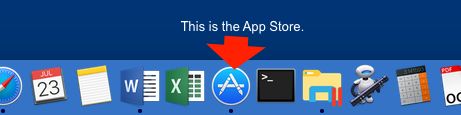 To make sure your Mac is up to date, open the App Store and click on “Updates” (at the top right of the menu icons). You should see a list of any available updates not yet installed. You can click on the option to update any one of them, or simply "update all" to install everything.
Tuesday, June 27, 2017
Setting up an iPad for Work
Using a Margolis Edelstein iPad
We are now in the process of deploying iPads to attorneys who have requested them throughout the firm. We expect to have this done by the end of July. Because iPads are not really designed for enterprise control, Apple's security measures require the user to set up his or her own device, which requires not only passwords, but fingerprints and answers to personal security questions.
One thing we do ask is that you use your margolisedelstein.com email address for your Apple ID. If you already have an apple ID using that address, you may use that. If you have an Apple ID using a different email address, you need to set up a new one. Without this, the firm could be locked out of the device forever.
It is also important to secure your device with a six digit code to protect client confidentiality. Do not bypass this step. Make sure you remember your code. We cannot bypass it.
Keep in mind that the Firm’s Computer and Internet Use Policy applies to these new tablets. The firm’s purpose in providing them is to help you serve our clients and complete other work required tasks. We expect you to use them primarily for work purposes.
Setup
When you first turn on your new iPad, you will be asked to set it up. We are more than happy to assist if you run into any problems or have questions. The following are instructions to guide you through the setup:
All tablets should always be secured by a password and/or a fingerprint. We are obligated to make every effort to protect the confidentiality of client data.
Since the tablets contain firm data and access to firm networks, you should not allow others to use your tablet.
Your iPad should be set up using your Margolis Edelstein email address.
Maintain an auto-lock on your device. If it does not lock when left alone, that defeats the purpose of password protection.
Protecting the Device:
The number one way iPads break is by dropping them. To minimize damage we would like all user to use a tablet cover. These will be provided very soon.
Installing Apps (you should use the following):
Email: Use the Gmail or Inbox App from Google (not the native iPad mail program).
Calendar: Use Google Calendar (not the native iPad calendar).
Document creation: Download Office 365 (MS Word, Excel, and Powerpoint) apps from the App Store. If you work with Google Drive, you may also want Google Docs, Google Sheets, and Google Slides.
File Storage: Your iPad comes with a limited amount of storage space. The iCloud backup comes with even less. Use OneDrive (Microsoft) (1 TB come with Office 365 account) or Google Drive (unlimited storage)
Time Entry: For time entry, you should download the iTimeKeep App. Webview will not run on the iPad.
VPN: For VPN access to the firm’s network download Forticlient. To configure Forticlient to access our VPN, find the host for your office on this list. Port should be 443 and the username and password are the same as what you use in the office. I also recommend turning on the “hide invalid certificate warning.”
File Server: To access documents on the file server (e.g. MDIR or your H: drive) you will need to set up a program to get there. Use “Documents 6” by Readdle. This can be a little tricky to set up. If you would like us to set it up for you, contact the Help Desk. If you feel comfortable with setup, here is how it works:
Once you have installed and opened the Documents App, you should see an "In the cloud" section on the left. Press the "+add" to add a server. Select "Windows SMB" Title can be anything, e.g. "Phila M Drive" might be a good choice. The URL is the connection you want to make: smb://10.0.0.250/data/mdrive (or whatever path you wish to map). Login again is whatever name and password you normally uses to access the server. If you are setting up outside the office, be sure you are connected to VPN first.
PDF: Adobe Reader is good for viewing PDF documents. If you want the ability to mark up a PDF, try Foxit PDF.
Notes: OneNote is integrated with your Office 365 account. Google Keep will work with Google Drive. Use either of these.
Research: LexisAdvance App for legal research.
Connecting with Clients: We want you to use your device to connect with your colleagues and the world, especially in growing your social footprint on LinkedIn or your favorite network. You’re the face of ME, and we want you to reach as many existing and potential clients as possible with your ideas, thoughts and work.
We hope these suggestions will get you started in making the most of your new iPad. We view this project as a collaborative one. If you have suggestions for other Apps that your fellow attorneys may find useful, please let us know.
We are now in the process of deploying iPads to attorneys who have requested them throughout the firm. We expect to have this done by the end of July. Because iPads are not really designed for enterprise control, Apple's security measures require the user to set up his or her own device, which requires not only passwords, but fingerprints and answers to personal security questions.
One thing we do ask is that you use your margolisedelstein.com email address for your Apple ID. If you already have an apple ID using that address, you may use that. If you have an Apple ID using a different email address, you need to set up a new one. Without this, the firm could be locked out of the device forever.
It is also important to secure your device with a six digit code to protect client confidentiality. Do not bypass this step. Make sure you remember your code. We cannot bypass it.
Keep in mind that the Firm’s Computer and Internet Use Policy applies to these new tablets. The firm’s purpose in providing them is to help you serve our clients and complete other work required tasks. We expect you to use them primarily for work purposes.
Setup
When you first turn on your new iPad, you will be asked to set it up. We are more than happy to assist if you run into any problems or have questions. The following are instructions to guide you through the setup:
- Select Language and Country (English, then United States)
- Connect to you office WiFi
- Recommend turn on Location Services
- Touch ID, setup with at least one fingerprint.
- Set up a pass code.
- Apps & Data, Setup as a new iPad unless the you already have an iCloud account using your work email. You should use your work email address for this account.
- Skip Apple Pay
- Skip iCloud keychain
- I recommend enabling Siri, unless you really don’t want to use it.
- Analytics: don’t share
All tablets should always be secured by a password and/or a fingerprint. We are obligated to make every effort to protect the confidentiality of client data.
Since the tablets contain firm data and access to firm networks, you should not allow others to use your tablet.
Your iPad should be set up using your Margolis Edelstein email address.
Maintain an auto-lock on your device. If it does not lock when left alone, that defeats the purpose of password protection.
Protecting the Device:
The number one way iPads break is by dropping them. To minimize damage we would like all user to use a tablet cover. These will be provided very soon.
Installing Apps (you should use the following):
Email: Use the Gmail or Inbox App from Google (not the native iPad mail program).
Calendar: Use Google Calendar (not the native iPad calendar).
Document creation: Download Office 365 (MS Word, Excel, and Powerpoint) apps from the App Store. If you work with Google Drive, you may also want Google Docs, Google Sheets, and Google Slides.
File Storage: Your iPad comes with a limited amount of storage space. The iCloud backup comes with even less. Use OneDrive (Microsoft) (1 TB come with Office 365 account) or Google Drive (unlimited storage)
Time Entry: For time entry, you should download the iTimeKeep App. Webview will not run on the iPad.
VPN: For VPN access to the firm’s network download Forticlient. To configure Forticlient to access our VPN, find the host for your office on this list. Port should be 443 and the username and password are the same as what you use in the office. I also recommend turning on the “hide invalid certificate warning.”
File Server: To access documents on the file server (e.g. MDIR or your H: drive) you will need to set up a program to get there. Use “Documents 6” by Readdle. This can be a little tricky to set up. If you would like us to set it up for you, contact the Help Desk. If you feel comfortable with setup, here is how it works:
Once you have installed and opened the Documents App, you should see an "In the cloud" section on the left. Press the "+add" to add a server. Select "Windows SMB" Title can be anything, e.g. "Phila M Drive" might be a good choice. The URL is the connection you want to make: smb://10.0.0.250/data/mdrive (or whatever path you wish to map). Login again is whatever name and password you normally uses to access the server. If you are setting up outside the office, be sure you are connected to VPN first.
PDF: Adobe Reader is good for viewing PDF documents. If you want the ability to mark up a PDF, try Foxit PDF.
Notes: OneNote is integrated with your Office 365 account. Google Keep will work with Google Drive. Use either of these.
Research: LexisAdvance App for legal research.
Connecting with Clients: We want you to use your device to connect with your colleagues and the world, especially in growing your social footprint on LinkedIn or your favorite network. You’re the face of ME, and we want you to reach as many existing and potential clients as possible with your ideas, thoughts and work.
We hope these suggestions will get you started in making the most of your new iPad. We view this project as a collaborative one. If you have suggestions for other Apps that your fellow attorneys may find useful, please let us know.
Subscribe to:
Posts (Atom)