For the last few weeks, we have been migrating copies of all your Google mail to Microsoft's Exchange Online. Over the weekend we completed all of the initial migrations. As a result, the firm is planning to move to Exchange tonight (Mon. Aug. 28) at 7:00 PM.
What Will Happen
At present, all of your mail is in two places: both in your Google mailbox and your Exchange mailbox. This evening at 7PM, we will perform a final synchronization of the two mailboxes.
At the same time, I will change the MX records with our DNS provider. In plain English, that means that I am telling the entire internet that if they send an email anyone using the margolisedelstein.com domain, that mail should go to Microsoft rather than Google. The sync will continue running all night, just in case an email still gets sent to Google.
There should be no interruption in email service. Any incoming mail should get sent either to Google or Microsoft depending on when it hits the system. You can send messages from Google up until 7PM and can begin sending messages from Microsoft at 7PM and after.
Configuring your PC
If you have run Outlook Assistant on the computer where you have Outlook installed, it should migrate your account automatically. You can simply continue using it. The Assistant should also bring over any personalized settings you made in Outlook.
Our migration consultant recommends leaving Outlook turned on tonight during the migration. However, if you don't have it on for some reason, it's not going to be a problem. You just may have to wait a few minutes as Outlook Assistant makes the adjustment the next time you open Outlook.
The firm would like everyone to use the Outlook client for email. Outlook already installed on your computer when you downloaded Office 365. If you have not installed Office 365, you really need to do that TODAY. If you have not yet used Outlook, I recommend waiting until tomorrow to configure it. You can simply start it as a new account using Microsoft Exchange.
If Outlook Assistant does not work, or you have no existing account, and you need to configure Outlook yourself. It should be very simple. Simply create a new user in Outlook. You are connecting to Microsoft Exchange Online. Your login name is your email address. Your password is your Office 365 password.
Configuring Mobile Devices
If you have an Android or Apple phone or tablet, the firm recommends you use the Microsoft Outlook App for your mail going forward. To set that up, simply enter your email address and Office 365 password when prompted.
If you have a Gmail app that you are no longer using, or any other mail program on your device, you may want to delete it to avoid confusion.
Checking Mail Online
If you like to check mail online, you can always do so through your Office 365 account. You can also go directly to http://outlook.office365.com and sign in there.
Other Configurations
In addition to email, your labels should come over as folders and keep everything filed as you had it before. Your contacts will also come over, though they may not show up in autocomplete. Your calendars will also migrate.
There are a few things that may not come over correctly and that you may need to set up again. While calendars will come over, any calendar sharing you had set up will not. You will need to share your calendars again with anyone you want to have access. Also, if you crated and filters to handle the automatic disposition of emails coming into your mailbox, you may need to recreate those again. If you used any third party tools to share folders or perform other functions, they may no longer be available at all.
If you had links to Google Drive documents, either in emails or calendar items, they will only work until Google Drive goes down in late September.
Your Old Google Account
Your account at Google will remain up and running for a few weeks. The purpose of this is to give you time to make sure everything migrated correctly, and that you have cleared off everything from the old account before it goes dark.
Your old email will continue to be there, but you should not use it after 7PM tonight. If you send an email or make any changes to that system after the migration is complete, you will lose all those emails or settings changes. You must start using Microsoft's mail at 7PM tonight and thereafter.

Margolis Edelstein Tech Blog
Monday, August 28, 2017

Monday, August 21, 2017
Changing Your Outlook
We are still on schedule to move to a new email service over Labor Day Weekend. We will be bidding goodbye to Google's G Suite and moving to Microsoft's Exchange Online.
For the past few weeks, we have been migrating your mail, contacts, and calendars to the new system. This process is still ongoing.
Outlook Users
If you already use Microsoft Outlook for your work email, you are currently connecting to Google Mail to receive and send messages. We will need to point Outlook to Microsoft's system at the appropriate time. To facilitate this, we have a program called Outlook Assistant. You can download and install this program now, and it will point your Outlook program to the new system at the appropriate time.
This week, you will receive an email with a link to download Outlook Assistant. When you do so, you may be asked to create a password.
IMPORTANT: This will change your password for the Office 365 Portal. If you already know your Office 365 password and want to keep it, simply enter that password. If you don't know your password or want to change it, this will give you the opportunity to reset it. This password must have at least 8 characters, both upper and lower case letters, and numbers. Please remember what your password is. If we have to change it before the migration is complete, your Outlook conversion will not work properly.
Once you enter a password, simply download and run the executable. Once this is installed, you will not see any changes. The program will wait until we tell it to make the switch to Exchange, then it will simply point your program to the new mailbox at the appropriate time.
If you do not install Outlook Assistant, you will no longer receive new emails once we cut over to the new system.
Non-Outlook Users
If you have not yet started using Outlook, and still rely on a web browser to get your mail, you will need to start going to a new web site for your mail. Rather than going to gmail.com, your mail will start coming to outlook.office365.com.
This will be a new interface that looks a little different, but it will continue to provide browser based access to send and receive mail.
If you go to that web site now, you can see that most of your mail is already there. Do not be concerned if some mail is missing. We are still migrating mail, and your mailbox may not be complete.
IMPORTANT: Do not start sending mail from the Office 365 portal before the migration is complete, and do not make any changes to the mail in the new portal. If you do, you will mess up the migration. Do not delete messages. Do not move them into folders. Do not try to send messages from there. Do not make any changes at all. You cannot start using the portal until the migration is complete.
If you want to begin using Outlook for your mail, but have not done so already, at this point I would recommend waiting until we make the final conversion. At that point, you can simply run your initial setup of Outlook and begin using it with Microsoft Exchange Online.
Everyone
There will be some work to do once the migration is complete. We are migrating your mail, contacts, and calendar. You may lose some settings. If you have filters set up to deal with messages, you will need to recreate those in Exchange. If you have shared calendars with others, you will need to re-share them. If you are using third party tools like Cloud HQ to share mail folders, those tools will no longer work.
Your labels/folders will move over, but going forward, you can only assign a message to one folder. If you have messages with more than one label during migration, they will be duplicated with a copy in each folder.
The exact timing of the final conversion to the new system is dependent on when the migration is complete. Once we are confident of when that will happen, we will let everyone know the exact date and time of the cut-over.
Once cut-over is complete, there may be a short time when you still have access to your Gmail account, even though it will no longer be receiving any new messages. This will give you a chance to confirm for yourself that everything moved properly. However, once the migration is complete, you should not attempt to send messages from Gmail, nor make any other changes in the old system.
We plan to bring over the contents of your Google Drive to your personal Box folder. Anything else you may use in Google that is tied to your work account (e.g. photos, chats, blogs, sites, etc.) will be gone once we shut down our Google account.
For the past few weeks, we have been migrating your mail, contacts, and calendars to the new system. This process is still ongoing.
Outlook Users
If you already use Microsoft Outlook for your work email, you are currently connecting to Google Mail to receive and send messages. We will need to point Outlook to Microsoft's system at the appropriate time. To facilitate this, we have a program called Outlook Assistant. You can download and install this program now, and it will point your Outlook program to the new system at the appropriate time.
This week, you will receive an email with a link to download Outlook Assistant. When you do so, you may be asked to create a password.
IMPORTANT: This will change your password for the Office 365 Portal. If you already know your Office 365 password and want to keep it, simply enter that password. If you don't know your password or want to change it, this will give you the opportunity to reset it. This password must have at least 8 characters, both upper and lower case letters, and numbers. Please remember what your password is. If we have to change it before the migration is complete, your Outlook conversion will not work properly.
Once you enter a password, simply download and run the executable. Once this is installed, you will not see any changes. The program will wait until we tell it to make the switch to Exchange, then it will simply point your program to the new mailbox at the appropriate time.
If you do not install Outlook Assistant, you will no longer receive new emails once we cut over to the new system.
Non-Outlook Users
If you have not yet started using Outlook, and still rely on a web browser to get your mail, you will need to start going to a new web site for your mail. Rather than going to gmail.com, your mail will start coming to outlook.office365.com.
This will be a new interface that looks a little different, but it will continue to provide browser based access to send and receive mail.
If you go to that web site now, you can see that most of your mail is already there. Do not be concerned if some mail is missing. We are still migrating mail, and your mailbox may not be complete.
IMPORTANT: Do not start sending mail from the Office 365 portal before the migration is complete, and do not make any changes to the mail in the new portal. If you do, you will mess up the migration. Do not delete messages. Do not move them into folders. Do not try to send messages from there. Do not make any changes at all. You cannot start using the portal until the migration is complete.
If you want to begin using Outlook for your mail, but have not done so already, at this point I would recommend waiting until we make the final conversion. At that point, you can simply run your initial setup of Outlook and begin using it with Microsoft Exchange Online.
Everyone
There will be some work to do once the migration is complete. We are migrating your mail, contacts, and calendar. You may lose some settings. If you have filters set up to deal with messages, you will need to recreate those in Exchange. If you have shared calendars with others, you will need to re-share them. If you are using third party tools like Cloud HQ to share mail folders, those tools will no longer work.
Your labels/folders will move over, but going forward, you can only assign a message to one folder. If you have messages with more than one label during migration, they will be duplicated with a copy in each folder.
The exact timing of the final conversion to the new system is dependent on when the migration is complete. Once we are confident of when that will happen, we will let everyone know the exact date and time of the cut-over.
Once cut-over is complete, there may be a short time when you still have access to your Gmail account, even though it will no longer be receiving any new messages. This will give you a chance to confirm for yourself that everything moved properly. However, once the migration is complete, you should not attempt to send messages from Gmail, nor make any other changes in the old system.
We plan to bring over the contents of your Google Drive to your personal Box folder. Anything else you may use in Google that is tied to your work account (e.g. photos, chats, blogs, sites, etc.) will be gone once we shut down our Google account.
Tuesday, August 15, 2017
Box Moves
The firm still plans to move to Box.com in September, which is now rapidly approaching.
Network File Servers Will Disappear
When we move to Box, all of the files stored on local servers will become unavailable to users. Everything stored on all the network drives (e.g. H: I: M: Q: S: U: and probably any other letter used on your computer that goes past E:) are going away. Also going away is Google Drive.
The Firm Will Migrate Only Certain Folders
We are taking the opportunity of this move to clean up our network drives. Over the years we have allowed many random files and folders to accumulate. Some your team may use actively every day. Others, may contain important information stored away for years that is still needed. Others, may have been abandoned and forgotten.
The firm will migrate automatically all the information stored in MDIR under specific client and matter numbers. These will move without the need for you to do anything.
Similarly, your personal drive (H: or I: depending on your office) should move automatically. Information stored in your personal drive will go into a personal drive on Box. Anything stored in your Google Drive will also migrate to Box.
Don't Be Left Behind
As for everything else, this is where we need your help. If there is other information stored on the network that you wish to retain, you need to let us know where it is and what it is. For example, in the Philadelphia MDIR, there are 127 files that are names, not numbers. There are also a few number files that are not client numbers. There are also nearly 3000 files in the root of the MDIR folder, most of which look like files someone tried to file in a subfolder but misnamed the file. Unless someone tells us otherwise, we plan to leave these behind.
Similarly, in the root of the M: drive in Philadelphia, there are lots of random files and folders. Some of these have an administrative purpose. Many do not. There are many random folders in PublicWP that we have allowed to grow without explanation as well. If there is something in those folders that you want brought over to Box, make sure we know about it. Otherwise it may be left behind.
In Mt. Laurel over the years, it became a common practice to share H: drive with other people. Many groups commonly use the H: drive folder of former employees as shared areas. Unless we know about that, those files will not make the trip to Box.
Across all offices, over the years we have set up special accommodations which may included network drives using another letter, or special folders we created for you somewhere. Again, if there is something you use, make sure we know about it.
To be clear, if you have files ANYWHERE on the system that is not in a client/matter folder, or in your personal folder, it is likely not coming with us. If you still need that information, please let us know about it.
How to Make Sure Your Important Data Migrates
If you have files and folders that need to migrate, I recommend sending an email to Cain Elliot, Mary McSorley, and Michael Troy. Make sure to copy all of us so that nothing slips through the cracks.
Thursday, August 3, 2017
Cleaning out Mailboxes, Part 2
Based on user feedback from my first post on cleaning out mailboxes, I would like to pass along a few other ideas for clearing out space on your computer.
Removing Labels
When we moved to Microsoft's Exchange Online, any email that has two or more labels will be duplicated in the new mailbox so that one copy can go in each folder. So, while removing multiple labels from your Gmail mailbox will not shrink its size now, doing so will prevent your new maillbox from greatly increasing in size.
One label that has become meaningless now is GW Archive. This was a label that was set when we moved email from the old GroupWise system into Gmail years ago. The GW Archive label indicated email messages that had been archived in GroupWise. Most of those messages also had other labels associated with them to indicate where they should be filed.
To remove the GW Archive label from any email, open the GW Archive folder in your mailbox, use the check box to select all, then click on the link to select all conversations with that label. Once selected, you can click on the label icon and remove the check mark next to GW Archive. This will strip the GW Archive label from all those emails, while leaving the messages themselves intact. Of course, if you no longer want any of those very old messages, you could also opt to delete them, knowing that doing so will delete them from all labels under which they may be stored.
If you have other labels that you don't think you need any longer, you can use this same method to open other labels and strip that particular label from all emails.
Deleting Dictation
Many attorneys have been using outsourced dictation for many years. Some of you have been saving all of the sent emails that you sent to the transcription companies, along with those large audio recording attachments. This can be a great place to recover a large amount of mailbox space.
To find these, run the following search:
to:keystrokepro.com.
Once you find them, you can select all and delete. If you are willing to delete the returned transcripts, you can search for from:keystrokepro.com.
Using the "to:" or "from:" ensures you only get messages to or from that address, not any email that references that name.
Of course, if you use a different transcription service, simply substitute keystrokepro.com with the other services name.
Conversation Mode
Be careful, if you have "conversation mode" turned on, these searches will show you all conversations where at least one email meets the search criteria. If you delete all of these, it will delete the entire conversation. That is probably ok, since it will simply be deleting forwarded recordings or transcripts. Just be careful you know what you are deleting.
If you want to be sure you are deleting only the messages that fall into your search and not others in the same conversation, you may want to turn off conversation mode temporarily. To do that, click on the gear icon in the upper right hand corner of your inbox, and select "Settings". In Settings, you should see a toggle switch to turn off conversation mode.
Empty Trash
Of course, once you are done with your deletions, be sure to empty your trash. Otherwise all your deleted mail will remain in trash for 30 days and will still need to be migrated. Just be sure you want to delete what you are deleting. Once you empty trash, you can no longer recover those messages.
Wednesday, August 2, 2017
Cleaning Out Your Mailbox
As we move our email system from Google to Microsoft, we bid adieu to the unlimited storage space that we have in Google. Microsoft limits mailbox size to 50 GB. While this is more than enough for most, it will be important once again to keep mailbox bloat under control
The firm also now recommends using MS Outlook on your computer, as opposed to using the simple online interface we had in Google. Microsoft Exchange Online will also offer an online interface. However, some of the other systems the firm is adopting need to use the good old fashioned Outlook program on your computer. Unlike more modern web based email, Outlook performance will be impacted by having particularly large mailboxes. This is another reason to remove the bloat.
A third reason for cleanup is that our migration from Google to Microsoft will go much faster and more smoothly the smaller the mailboxes are than we need to move. So if at all possible, please clean out your mailboxes.
Search Your Archives:
First, look for archived emails. Many mail programs, particularly on your phones, have often archived mail that you thought you were deleting. You may want to check and see if this is the case, by looking for archived mail in your mailbox.
To search only for archived email, run the following search in the Gmail search bar:
has:nouserlabels -in:Sent -in:Chat -in:Draft -in:Inbox
Be careful though, if you have "conversation view" turned on, you may still see some email that is not archived as Google will show you all conversations in which any one message within that conversation was archived. Select the messages you want and delete them.
Search for Large Attachments
Most individual emails take up almost no space. A plain text message is usually less than 5kb in size. You could save millions of them and never fill your mailbox. What takes up your space are large attachments and pictures. Google allows for attachments of up to 25 MB in size. A mere forty emails like this would use up 1 GB of storage space. A single email with a 20 MB attachment takes up as much space as 10,000 short text emails of 2 KB each.
To search for these particularly large emails, I recommend doing a search by mail size. For example, if I wanted to search for all of my emails larger than 20 MB, I would run the following search in the Gmail search bar:
larger:20m
I recommend searching for 20 MB and larger files. If you don't find very many search for larger:15m, or larger10m, or even larger 5m to see all the larger files. Delete those you do not need.
Search for older messages
Some of us have email messages going back decades. Many of these may be for closed cases that we never want to review again, or maybe just old notes about going to lunch or taking a personal day back in 2003. You can look for older messages by using the following search in Gmail:
Older_than:10y
That would show you all messages older than 10 years. You could, of course change it to search for mail older than 5 years with: Older_than:5y.
You can also search by date. For example, if your wanted to find anything sent or received before January 15, 2010, you would run the following search:
Before:2010/01/15
Specific Senders:
Perhaps you get mail from someone you are sure you never want to see again. This is a great way to isolate all that junk mail from Amazon.com or linkedin.com
You can search for certain senders. For example, if you wanted to search for every message you received from linkedin.com, you would search for:
from:linkedin.com
This will only show you emails from that domain, not emails in which you happened to reference the domain in the text of your email.
Another good trick is to search for:
from:noreply
A great many junk mail senders use "noreply" in their from address. This is a quick and easy way to find and delete them.
Combination Searches
You can run any of the above searches in combination with each other. For example, if you want to see all emails larger than 10 MB and older than 3 years, you would search:
larger:10m AND older_than:3y
Deleting Mail:
Once you have your search results, you must select all the messages and then click on trash to send them to trash. Your page shows you only a limited number at a time. The default is 50 messages, while the maximum you can see on one page is 100 messages.
However, if you are really sure you want to delete all the messages you have found in your search, and don't want to look at the whole list, you can do the following:
Click on the box just above the list to select all the messages on that page. When you do, another line will appear just above the first checked message. It says: "All 100 conversations on this page are selected. Select all conversations that match this search." If you click on the underlined part, it will select all emails that match your search on subsequent pages without you having to scroll through each page. Once you have selected the messages, simply click on the trash can icon to delete everything.

Remove Labels
Although multiple labels do not increase the space you use in Google, Microsoft does not allow you add more than one label to an email. If you have assigned multiple labels to an email, our migration process will duplicate the email so that it can be stored in multiple folders. This doubles the amount of space each email takes (or triples if you have three labels on one email).
If possible, you may want to consider removing multiple labels from emails. You will not be able to use multiple labels going forward. Removing them from existing emails will help reduce your footprint.
Empty Your Trash and Spam:
Now I know this advice goes directly against what I have been telling everyone for years. When you delete something, it sits in your trash for 30 days, then disappears forever. I have long strongly recommend you allow everything to sit in trash for 30 days before it goes away. Once it is gone from trash, you cannot recover it.
However, in this case, I must ask that you empty your trash. If not, the migration tool will pull over all the messages you put in trash, thus defeating the purpose of cleaning up you mailbox. Just please, please, PLEASE, make sure you really want all those messages to disappear forever before emptying trash.
While you are at it, if your mailbox is like mine and has thousands of messages in your spam folder, you may want to empty that as well. Google deletes spam after 30 days, but there may be thousands of spam messages in there every little bit helps in reducing the load for migration.
The firm also now recommends using MS Outlook on your computer, as opposed to using the simple online interface we had in Google. Microsoft Exchange Online will also offer an online interface. However, some of the other systems the firm is adopting need to use the good old fashioned Outlook program on your computer. Unlike more modern web based email, Outlook performance will be impacted by having particularly large mailboxes. This is another reason to remove the bloat.
A third reason for cleanup is that our migration from Google to Microsoft will go much faster and more smoothly the smaller the mailboxes are than we need to move. So if at all possible, please clean out your mailboxes.
Search Your Archives:
First, look for archived emails. Many mail programs, particularly on your phones, have often archived mail that you thought you were deleting. You may want to check and see if this is the case, by looking for archived mail in your mailbox.
To search only for archived email, run the following search in the Gmail search bar:
has:nouserlabels -in:Sent -in:Chat -in:Draft -in:Inbox
Be careful though, if you have "conversation view" turned on, you may still see some email that is not archived as Google will show you all conversations in which any one message within that conversation was archived. Select the messages you want and delete them.
Search for Large Attachments
Most individual emails take up almost no space. A plain text message is usually less than 5kb in size. You could save millions of them and never fill your mailbox. What takes up your space are large attachments and pictures. Google allows for attachments of up to 25 MB in size. A mere forty emails like this would use up 1 GB of storage space. A single email with a 20 MB attachment takes up as much space as 10,000 short text emails of 2 KB each.
To search for these particularly large emails, I recommend doing a search by mail size. For example, if I wanted to search for all of my emails larger than 20 MB, I would run the following search in the Gmail search bar:
larger:20m
I recommend searching for 20 MB and larger files. If you don't find very many search for larger:15m, or larger10m, or even larger 5m to see all the larger files. Delete those you do not need.
Search for older messages
Some of us have email messages going back decades. Many of these may be for closed cases that we never want to review again, or maybe just old notes about going to lunch or taking a personal day back in 2003. You can look for older messages by using the following search in Gmail:
Older_than:10y
That would show you all messages older than 10 years. You could, of course change it to search for mail older than 5 years with: Older_than:5y.
You can also search by date. For example, if your wanted to find anything sent or received before January 15, 2010, you would run the following search:
Before:2010/01/15
Specific Senders:
Perhaps you get mail from someone you are sure you never want to see again. This is a great way to isolate all that junk mail from Amazon.com or linkedin.com
You can search for certain senders. For example, if you wanted to search for every message you received from linkedin.com, you would search for:
from:linkedin.com
This will only show you emails from that domain, not emails in which you happened to reference the domain in the text of your email.
Another good trick is to search for:
from:noreply
A great many junk mail senders use "noreply" in their from address. This is a quick and easy way to find and delete them.
Combination Searches
You can run any of the above searches in combination with each other. For example, if you want to see all emails larger than 10 MB and older than 3 years, you would search:
larger:10m AND older_than:3y
Deleting Mail:
Once you have your search results, you must select all the messages and then click on trash to send them to trash. Your page shows you only a limited number at a time. The default is 50 messages, while the maximum you can see on one page is 100 messages.
However, if you are really sure you want to delete all the messages you have found in your search, and don't want to look at the whole list, you can do the following:
Click on the box just above the list to select all the messages on that page. When you do, another line will appear just above the first checked message. It says: "All 100 conversations on this page are selected. Select all conversations that match this search." If you click on the underlined part, it will select all emails that match your search on subsequent pages without you having to scroll through each page. Once you have selected the messages, simply click on the trash can icon to delete everything.

Remove Labels
Although multiple labels do not increase the space you use in Google, Microsoft does not allow you add more than one label to an email. If you have assigned multiple labels to an email, our migration process will duplicate the email so that it can be stored in multiple folders. This doubles the amount of space each email takes (or triples if you have three labels on one email).
If possible, you may want to consider removing multiple labels from emails. You will not be able to use multiple labels going forward. Removing them from existing emails will help reduce your footprint.
Empty Your Trash and Spam:
Now I know this advice goes directly against what I have been telling everyone for years. When you delete something, it sits in your trash for 30 days, then disappears forever. I have long strongly recommend you allow everything to sit in trash for 30 days before it goes away. Once it is gone from trash, you cannot recover it.
However, in this case, I must ask that you empty your trash. If not, the migration tool will pull over all the messages you put in trash, thus defeating the purpose of cleaning up you mailbox. Just please, please, PLEASE, make sure you really want all those messages to disappear forever before emptying trash.
While you are at it, if your mailbox is like mine and has thousands of messages in your spam folder, you may want to empty that as well. Google deletes spam after 30 days, but there may be thousands of spam messages in there every little bit helps in reducing the load for migration.
Monday, July 31, 2017
Thinking Inside the Box
Mr. McKenna sent around an email a few weeks ago announcing the firm's decision to move all files from local server to Box.com, an online file storage system.
Our Business Intelligence Officer, Cain Elliot is working with the IT Department to get the data moved to Box over the next few weeks. Then the transition is complete, there will no longer be an M: drive, or H: drive, or any other network drives. You will access and save all of your files through Box.com.
As part of this move, we are taking the opportunity to reorganize and bring some order to the way we store matter files. We want to have all files stored in a unified way. Part of this is to make the files easier to access with some of the other systems we are preparing to implement. Part of it is also to make it easier for attorneys in all offices to find files no matter which office is storing them.
For some offices, the unified system will be more of a change than for others. Each office will still have its own matter directory, though it will now be much easier to share those with attorneys in other offices. Within the matter directory, each case will be saved under a folder using the client number. Inside that folder will be a folder with each matter number. Inside there, will be a specific set of subfolders in which you can store any matter related documents.
We also plan to create a set of personal folders, based on your current Personal folder (H: drive in some offices, I: drive in others). These are your personal files not shared with others.
Because client and matter folders will be limited to those specific numbered folders for active files, we will also create a shared area where you can set up folders you want to share with others. There, you will be able to create work groups or other shared space for collaboration.
The switch to Box should bring many benefits. As a cloud storage point, you will have easy access to your documents outside the office. It will also make collaboration between attorneys in different offices much easier. Searching for documents will also become much faster and easier. We will even be able to set up shared work spaces for people outside the office, making collaboration with co-counsel or clients easier as well. Box also allows you to add notes to documents. You can also save versions of documents, allowing you to go back to an earlier version if needed.
One of the biggest selling points of Box though, is its ability to integrate with a wide range of other systems. As we get ready to deploy a new email systems, time and billing system, and a case management system, we wanted a service that would integrate with everything. Box seems to fit that bill very well. It also integrates very well with Microsoft office, making it very easy to open and save your documents without jumping through hoops. There is a Box App to give you easy access to your files from your iPad or phone.
As we attempt to migrate file data from nine separate servers into Box, we are moving a massive amount of data. If you still have files stored on the servers that you no longer need, either in your personal drive or on a shared drive, now would be an ideal time to delete them. We are also going to attempt to move the contents of your Google Drive to Box Trashing any unneeded files in Google Drive will also make our migration a little less burdensome.
We plan to go live with Box some time around Labor Day, though we will likely spread out the go-live so that we can get one office at a time up and running. Stay tuned for specific dates for your office.
Our Business Intelligence Officer, Cain Elliot is working with the IT Department to get the data moved to Box over the next few weeks. Then the transition is complete, there will no longer be an M: drive, or H: drive, or any other network drives. You will access and save all of your files through Box.com.
As part of this move, we are taking the opportunity to reorganize and bring some order to the way we store matter files. We want to have all files stored in a unified way. Part of this is to make the files easier to access with some of the other systems we are preparing to implement. Part of it is also to make it easier for attorneys in all offices to find files no matter which office is storing them.
For some offices, the unified system will be more of a change than for others. Each office will still have its own matter directory, though it will now be much easier to share those with attorneys in other offices. Within the matter directory, each case will be saved under a folder using the client number. Inside that folder will be a folder with each matter number. Inside there, will be a specific set of subfolders in which you can store any matter related documents.
We also plan to create a set of personal folders, based on your current Personal folder (H: drive in some offices, I: drive in others). These are your personal files not shared with others.
Because client and matter folders will be limited to those specific numbered folders for active files, we will also create a shared area where you can set up folders you want to share with others. There, you will be able to create work groups or other shared space for collaboration.
The switch to Box should bring many benefits. As a cloud storage point, you will have easy access to your documents outside the office. It will also make collaboration between attorneys in different offices much easier. Searching for documents will also become much faster and easier. We will even be able to set up shared work spaces for people outside the office, making collaboration with co-counsel or clients easier as well. Box also allows you to add notes to documents. You can also save versions of documents, allowing you to go back to an earlier version if needed.
One of the biggest selling points of Box though, is its ability to integrate with a wide range of other systems. As we get ready to deploy a new email systems, time and billing system, and a case management system, we wanted a service that would integrate with everything. Box seems to fit that bill very well. It also integrates very well with Microsoft office, making it very easy to open and save your documents without jumping through hoops. There is a Box App to give you easy access to your files from your iPad or phone.
As we attempt to migrate file data from nine separate servers into Box, we are moving a massive amount of data. If you still have files stored on the servers that you no longer need, either in your personal drive or on a shared drive, now would be an ideal time to delete them. We are also going to attempt to move the contents of your Google Drive to Box Trashing any unneeded files in Google Drive will also make our migration a little less burdensome.
We plan to go live with Box some time around Labor Day, though we will likely spread out the go-live so that we can get one office at a time up and running. Stay tuned for specific dates for your office.
Monday, July 24, 2017
Security Updates
Security updates can be annoying and frustrating. We often get update requests at inconvenient times and don't want to take the time to install them. That said, more and more, having the most recent security update installed is becoming more and more critical, to the point that it is part of our ethical obligation to protect client data.
Years ago, many updates were less important, making minor bug fixes or adding things that did not affect most of us. Today, hackers are looking to exploit recently discovered security bugs so that they can attack the computers of people who are too slow to install security patches. As a result, a device that is not completely up to date becomes a prime target for hackers in a way that was not true even a few years ago.
iPad / iPhone Updates
Last week, Apple release iOS 10.3.3 which patches a security hole that could allow a hacker access to your iPad or iPhone via a bug in the WiFi feature. To make sure your iPad or iPhone is up to date, just go into settings, then General, then Software Update. There, you should see that you are either up to date, or have an update pending.
Android Updates
If you have an Android device, you can go to Settings then System Updates. Our firm phones, using Samsung Galaxy, should be up to date automatically. If you have been ignoring pop-ups telling you to update, you should go ahead and update.
Because Android is on a wide variety of hardware, you may have a personal device that forces you to update manually, or may not even make available the most recent security updates at all. This is one reason the firm has decided to standardize on iOS devices, despite many other advantages that Android has over iOS.
As we tighten our security requirements, you may want to consider checking with the IT department before buying a new device, especially some of the cheaper Android devices out there. The firm may soon cut off access to some older or cheaper devices that do not meet security standards for protecting client data confidentiality.
Windows
The firm has standardized on Windows 7 and Windows 10. We have retired all of the Windows XP and earlier computers that had been in use. As we make the move to the cloud, some of our vendors require us to have all computers at Windows 7 or higher. All new computers will come with Windows 10, since Windows 7 is reaching end of life in a few more years.
Whichever version you have, you should get pop-ups from time to time asking you to install updates. Windows 10 is a little more persistent and annoying about such requests. But in either case, you should install any critical or important updates which Microsoft has released. Some of these happen automatically. Some simply remind you to update yourself. Many years ago, we did not always recommend installing the latest updates out of a fear that Microsoft sometimes introduced bugs with its updates. Today that is not the case. The risk of security holes far outweighs any risk of a buggy update.
 On the right hand side of the toolbar, you should seen an icon for security updates. If you hover your cursor over it, you can see if you have anything pending. Clicking on it will allow you to update. Critical updates are usually pushed out and installed without asking. If you have ever gone to shut down your computer and Windows says it is installing updates, you know what I mean.
MacOS
A few of our users have begun trying MacOS devices within the firm. Like anything else, these also need regular updates.
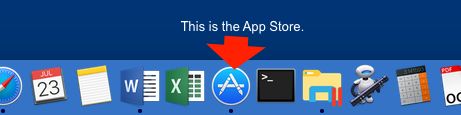 To make sure your Mac is up to date, open the App Store and click on “Updates” (at the top right of the menu icons). You should see a list of any available updates not yet installed. You can click on the option to update any one of them, or simply "update all" to install everything.
Subscribe to:
Posts (Atom)